 COME
COMEChoose a COME Section by Task: How the Sections Fit Together
Choose between catalogue browsing, personal records, preferences and help using the task you need to complete. You want to understand what people mean when they call COME a platform.
State the task in one sentence
Before choosing a prominent card, say what you want to do: browse available items, inspect a previous activity, change a preference or resolve a specific question. Those sentences point to different controls. The largest image on a home screen need not be the right destination for your task.
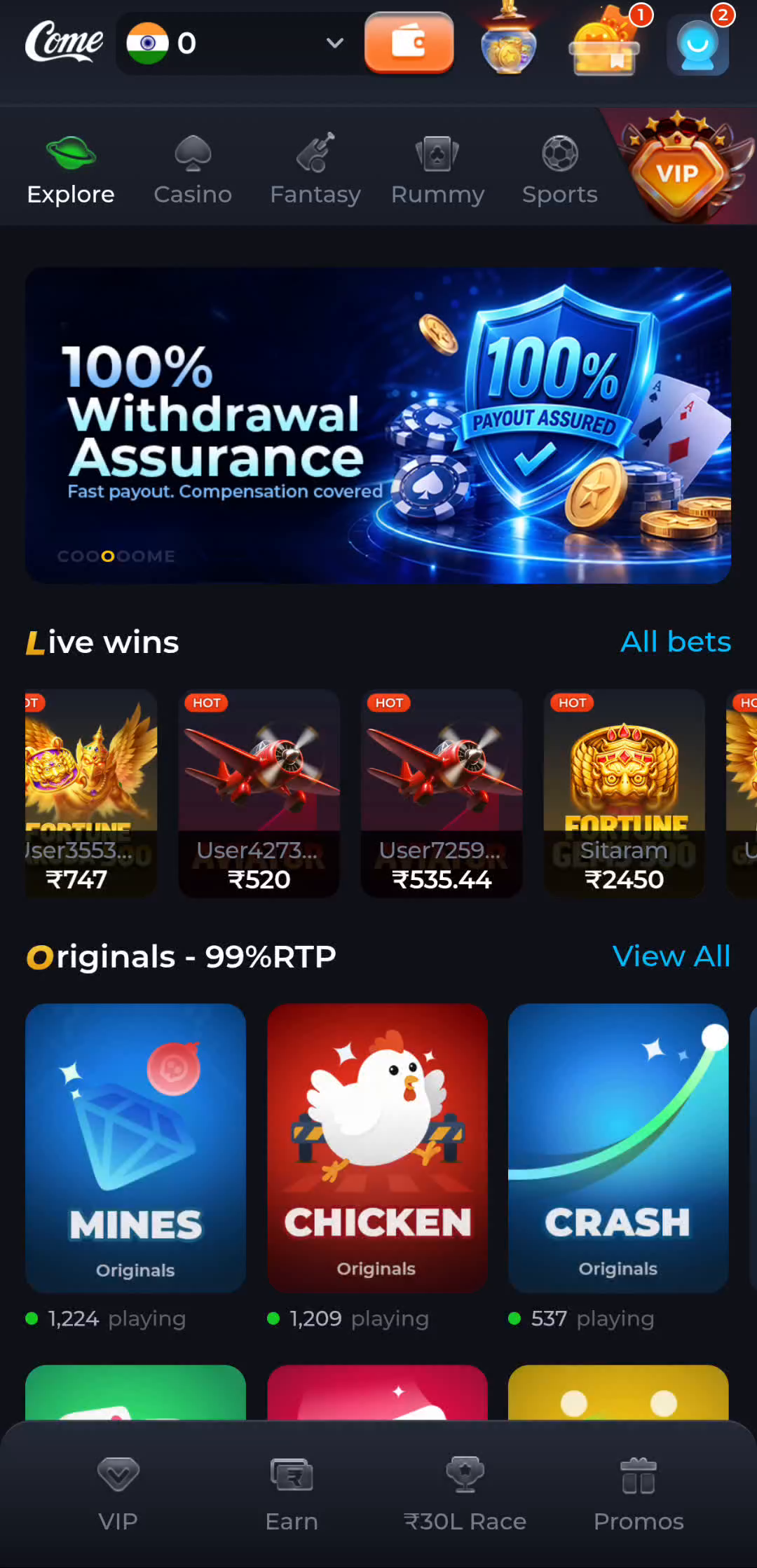
For browsing, begin with Explore and the category row. For personal information, find the profile menu. For a preference such as language or sound, use Settings. For a question that the current screen cannot answer, choose a relevant help topic. This small decision keeps a broad product visit manageable.
Match catalogue tasks to categories
The visible COME labels include Casino, Rummy, Fantasy and Sports alongside Explore. Read the area heading after choosing a label, then inspect an individual item. A category narrows the catalogue; it does not replace that item's information. Keep rules and conditions attached to the item they actually describe.
For a cricket-related visit, refine the task further. Reading runs and wickets, checking an event time, understanding fantasy points and watching video are different jobs. Identify the current screen's purpose before expecting one of those outputs. A Sports label alone is not a complete feature description.
Match personal tasks to records
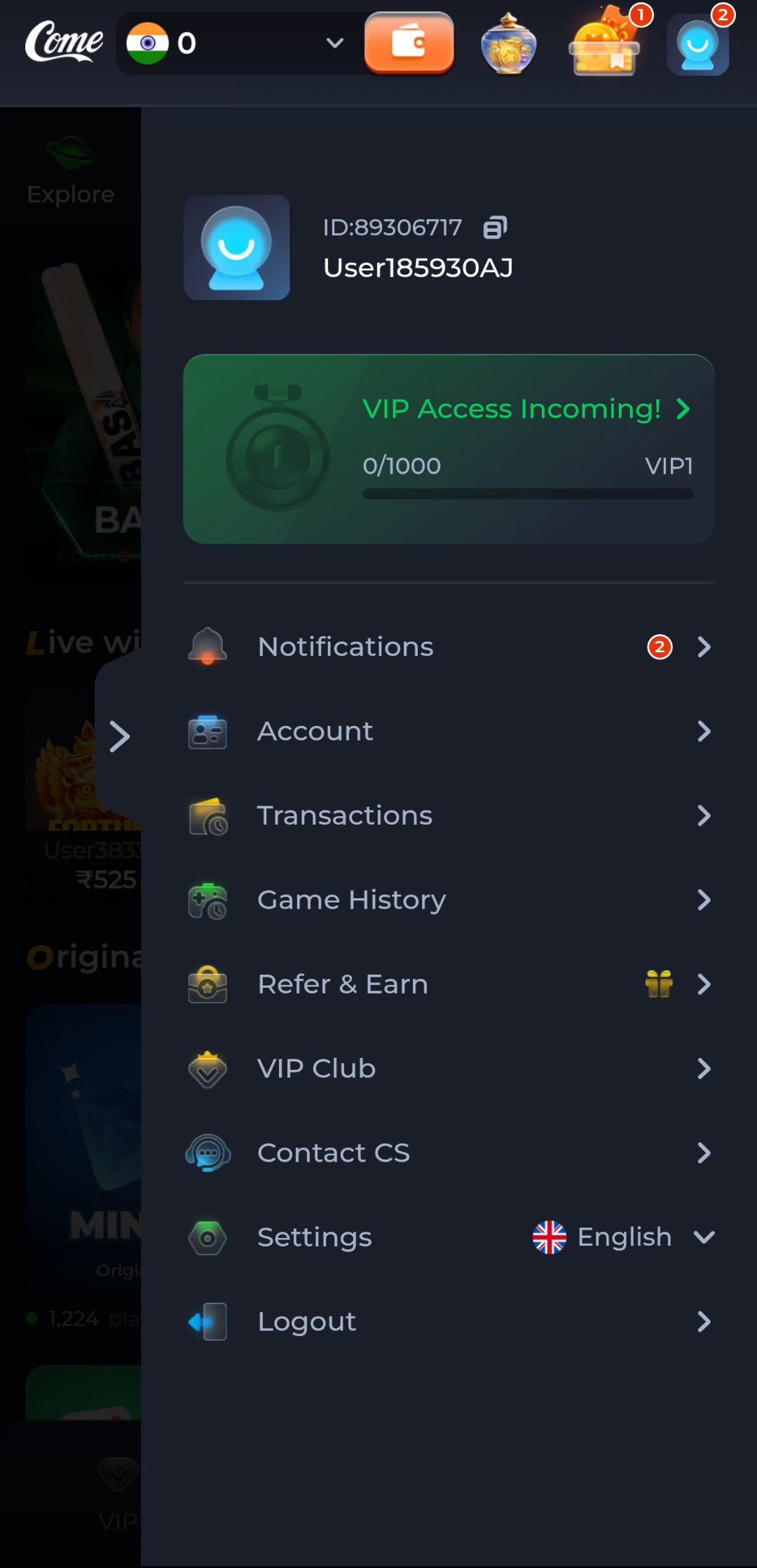
Account concerns identity; Transactions and Game History identify different kinds of records; Settings concerns preferences; Contact CS is a help route. Use the label relevant to your question and read the information actually shown. Do not assume a menu title tells you the meaning of every field inside it.
Establish the intended account before comparing histories or settings across entry methods. The same product name can be present while account state differs. If an operation is unresolved, inspect its status or relevant record before repeating it. Another installation is not a general solution for a question about an earlier action.
Change tasks deliberately
After finishing one task, return to a known screen and choose the next. Use the product's visible controls for its own navigation, and remember that browser Back follows browsing history. Closing an overlay, changing a category and leaving the website can have different effects.
The task is complete when you can identify where to go and why that area fits. If the expected section is absent, record the current screen and exact question for help. Do not infer a hidden control or a new product edition from an unfamiliar layout.
Apply this check to your visit
You want to understand what people mean when they call COME a platform.
Here the useful explanation is the organisation of the interface: several catalogue areas alongside account tools, preferences and help. It does not mean every listed category has identical rules or that every experience is a separate download. Move from the relevant category to the particular item's information and keep personal records in their own menu.
The checkpoint for this guide is specific: choose between catalogue browsing, personal records, preferences and help using the task you need to complete.
- Write a single task sentence.
- Choose catalogue, records, preferences or help.
- Read the selected screen title.
- Complete one task before switching areas.
Changing sound preferences belongs in Settings; it does not require choosing a game or reinstalling the app.
Questions about this task
Should I start with the most visible promotion?
Start with the control that matches your goal and read any promotion conditions separately.
Where should a history question go?
Use the relevant profile record after establishing the intended account.
A related next step
Distinguish the product interface, Android package and browser page so that each action has a clear result. You want to understand what people mean when they call COME a platform.
COME App, APK and Website Explained: How the Sections Fit Together